On The Glideslope

  • How To
    • How I Configure For VR In X-Plane
    • How To Have Dual Controls In X-Plane
    • How To Configure X-Plane 11 For Multiple Screens
    • How To Create Custom Cameras In P3D
    • How To Get Started With X-Plane 11
  • Resources
    • Schematics
    • Center Console Plans
    • Basement Sim Video Tour
    • Screen Configurations
    • A2A LVAR List PDFs
    • How To Talk ATC
    • Cessna 172 Cabin Dimensions
    • USB u0026 Saitek
  • Reviews
  • What’s In The Sim
  • About OTG
    • About OTG
    • The Construction Journey
  • Flying The Windrivers

    2016-09-24

    |

    Videos

    I used to hike the Windriver wilderness in Wyoming with my dad, who backpacked into this remote part of the US Continental Divide each for over 25 consecutive years. Hiking in from the west you’d go in through Pinedale. From the east, Lander. Here I fly between the two. Thanks for watching. 

    Share this:

    • Share on X (Opens in new window) X
    • Share on Facebook (Opens in new window) Facebook
    • Email a link to a friend (Opens in new window) Email
    • Print (Opens in new window) Print
  • How To Stop Dynamic Head Movement In Prepar3D

    2016-09-22

    |

    Configuration, How Tos

    A question I get from time to time is how I manage to keep my virtual cockpit views from moving as the aircraft moves (for example, the virtual eye point moving back as the airplane accelerates, or to the side in a turn). Prepar3D (and I presume FSX) have a configuration setting called “Dynamic Head Movement” which creates the effect. To turn it off, open your Prepar3D.cfg file and edit the values of these lines so they appear as below, and it should fix it (you may need to reboot):

    [DynamicHeadMovement]
    LonAccelOnHeadLon=0.000000
    LonAccelOnHeadPitch=0.000000
    RollAccelOnHeadLat=0.000000
    YawAccelOnHeadLat=0.000000
    RollAccelOnHeadRoll=0.0000000
    MaxHeadAngle=0.000000
    MaxHeadOffset=0.000000
    HeadMoveTimeConstant=0.000000

    Share this:

    • Share on X (Opens in new window) X
    • Share on Facebook (Opens in new window) Facebook
    • Email a link to a friend (Opens in new window) Email
    • Print (Opens in new window) Print
  • Mountain Strip Flying (GE99 and 2NC0)

    2016-09-22

    |

    Videos

    A viewer request flight to visit GE99 and 2NC0, both of which are mountain strips in the Southern USA. Beautiful locations and this one felt like an adventure! Thanks for watching.

    Details:
    – A2A Cessna 182
    – AS16 and ASCA
    – REX Direct 4 textures
    – Orbx OpenLC NA
    – Orbx Vector

    Share this:

    • Share on X (Opens in new window) X
    • Share on Facebook (Opens in new window) Facebook
    • Email a link to a friend (Opens in new window) Email
    • Print (Opens in new window) Print
  • Reader Mail: Saitek, SPAD.neXt, and A2A

    2016-09-20

    |

    Reader Mail, Saitek

    This recently from a reader, and I thought my reply (while not completely thorough) might be of help to others. I’ve made some minor edits  from the original.

    I bought the Saitek Multi Panel and Switch Panel but I can’t get them to work with the A2A 182 or 172. I read about Spad.NeXt but am not comfortable using it. Is there another way to get Saitek and A2A to get along?

    [NAME]

    ***

    SPAD.neXt is the best I’ve found. Part of the key is understanding profiles and snippets. Load up your 172 or 182, and then in SPAD.neXt go to the profiles page and look at the available online profiles. There should be some that others have made for the A2A planes. Download one and assign it as the profile for the plane in Prepar3d. You do this all in SPAD.neXt, and it’s really pretty easy once you get used to it. This should have the right codes for most of the switch panel and multi panel switches. You can also go to one of those instruments – say the switch panel – click on a button on the panel (say, fuel pump), and then click snippets. You can then download online snippets for that switch, or for the entire panel. I think I published my switch and multipanel snippets – they’d be listed with “basementflyguy” as the author. Try this and see if it helps. Someone before you has surely already done the work of figuring out the variable assignments and you just need to find the profile or snippet online … [and note that you need to be a paid user of SPAD.neXt to have access to the library of online profiles and snippets, which is well worth it in my opinion]

    And if you decide to roll your own, it’s really not too difficult. Every function in the sim has a command or variable associated with it – either a “simconnect” command (which is most of the stock functions) or an “LVAR” variable, which are custom variables like those in the A2A aircraft. To program a switch (say, the fuel pump), you click on it, pick if you want it switched up or down (for example), then assign the condition to be true when it’s flipped. You can pick a SimConnect command, a LVAR variable setting, turning on a light on the Saitek BIP panel, or several other things to result from the switch being thrown or button pushed.

    The commands and variables are searchable, so you could select “LVAR,” it pulls up a big list, and then you can type “pump” in the search box and all the LVAR variables that have “pump” in their name pop up. You see one listed “TOGGLE_ELECT_FUEL_PUMP1,” and you suspect that’s the right one. Select it, leave the assigned value at “0” (because it’s a toggle – with other variables, like barometric pressure, the variable could have a real value like 2995 – and the SPAD.neXt screen shows you in the lower left corner of the variable list screen what the possible values are), click OK and that switch is now assigned. Flip it and it will toggle the fuel pump.

    For the A2A aircraft most of the switches use LVARS rather than the stock SimConnect commands. You can find PDFs with all of those variables here: http://www.ontheglideslope.net/2016/07/08/a2a-cessna-172-182-piper-180-lvar-lists/

    I know a lot of folks struggle with the battery and alternator switches. For the A2A Cessnas the variables are:

    Eng1_GeneratorSwitch
    Battery1Switch

    Assign those variables to those switches in SPAD.neXt to those two switches on the switch panel (with values of 0 for off and 1 for on) and you should be good to go. [Also note that you need to ensure SPAD.neXt is configured to read LVAR variables, and this is an option you set on the SPAD.neXt settings screen].

    One last word: depending on when you have saved a scenarios some of the variables may already be “on” when you load the scenario, even if the switch is off. I often open the “mini panel” instrument menu in P3D just to ensure everything is clicked to off with all my switches off when I start a flight.

    Some day I will probably write a little how-to on SPAD.neXt and A2A. Until then, I hope this helps.

    ~ BFG


    Share this:

    • Share on X (Opens in new window) X
    • Share on Facebook (Opens in new window) Facebook
    • Email a link to a friend (Opens in new window) Email
    • Print (Opens in new window) Print
  • Tom Tsui Does It Again

    2016-09-20

    |

    Add Ons, Resources, Saitek

    intfg

    As I noted in this post, Tom Tsui has been working on FIP engine gauges for the A2A 172 and 182. They are now done, and this mean Tom now sells a full set of gauges programmed to work specifically with these A2A aircraft. The noise you hear is the sound of many A2A / Saitek simmers simultaneously praising Tom, the Lord, The Universe, or whatever deity they favor, for the existence of FIP gauges that correctly read the data of these highly accurate yet custom-programmed aircraft. Thanks, Tom. You do really great work for our community.

    As for me, I’ll be grabbing them ASAP. I’ve eagerly awaited a manifold pressure gauge for the A2A 182, and now thanks to Tom, I will have one (and can now properly fly this airplane simulating appropriate throttle / prop settings).

    You may get them here.

    Share this:

    • Share on X (Opens in new window) X
    • Share on Facebook (Opens in new window) Facebook
    • Email a link to a friend (Opens in new window) Email
    • Print (Opens in new window) Print
  • Back In The Saddle …

    2016-09-20

    |

    Uncategorized

    … at least for a few days. In the past 10 days I’ve been in or through Dallas, Salt Lake City, San Francisco, Long Island / NYC, Philadelphia, and Minneapolis. Needless to say, I’ve logged no sim time (well, maybe 30 minutes) in that span, and have had less time for blogging about it. The big news, of course, is that Lockheed Martin has released Prepar3d 3.4. Everyone is waiting for the add-on developers to update their software, but feel free to get it while it’s hot if you like. I will download it in time, as I believe every update improves the program overall. But I’ll wait a few weeks for the developer updates, any hotfixes, etc. In the meantime, there’s an AVSIM thread with people’s experiences here.

    Share this:

    • Share on X (Opens in new window) X
    • Share on Facebook (Opens in new window) Facebook
    • Email a link to a friend (Opens in new window) Email
    • Print (Opens in new window) Print
  • Mad Dog

    2016-09-11

    |

    Photos

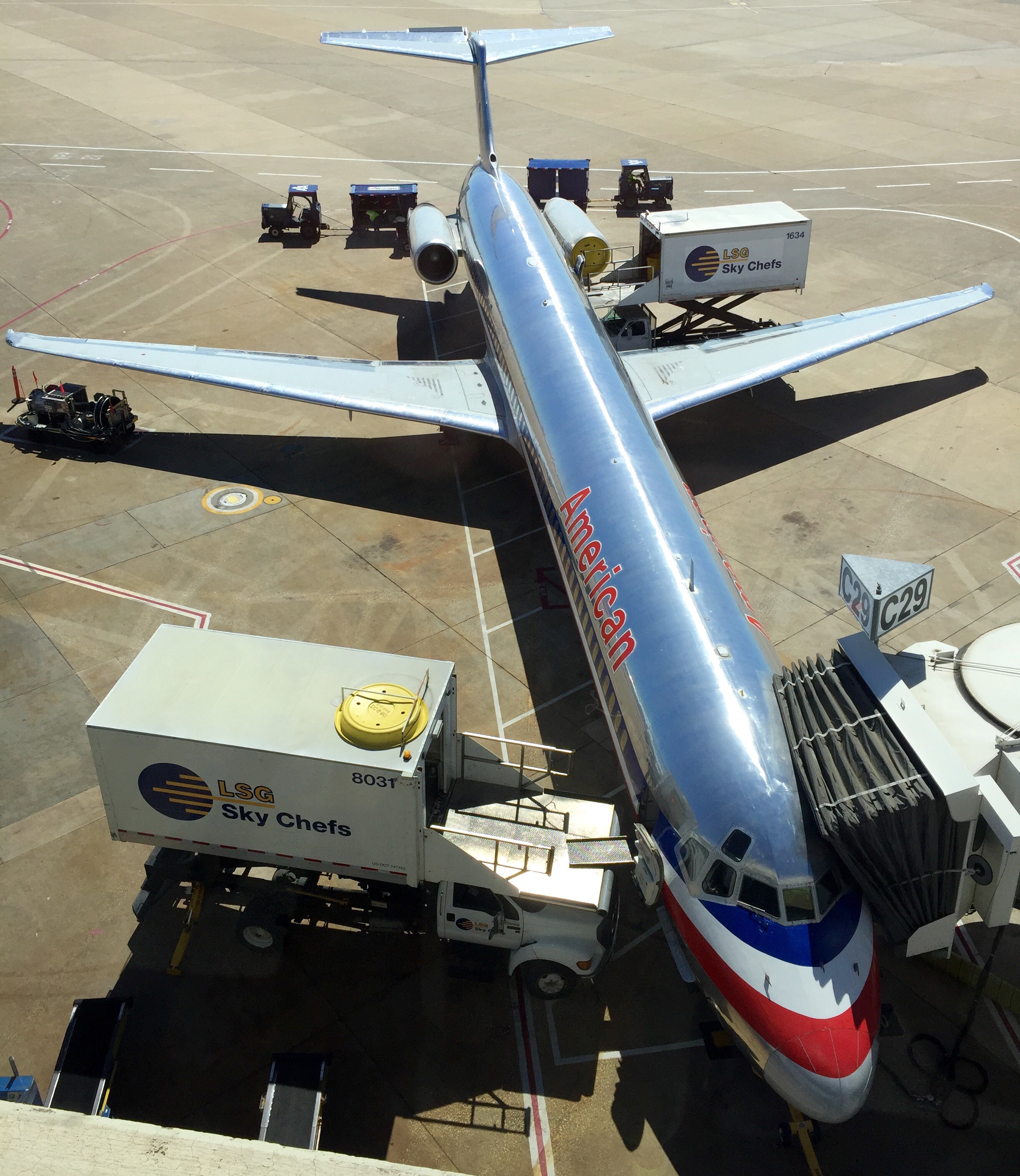
    I still love the classic AA livery, and will be sad to see these MD-80s retire. What I love almost as much as their look is how they feel like airplanes when they fly. 

    Share this:

    • Share on X (Opens in new window) X
    • Share on Facebook (Opens in new window) Facebook
    • Email a link to a friend (Opens in new window) Email
    • Print (Opens in new window) Print
  • KPHL 27L

    2016-09-11

    |

    Photos

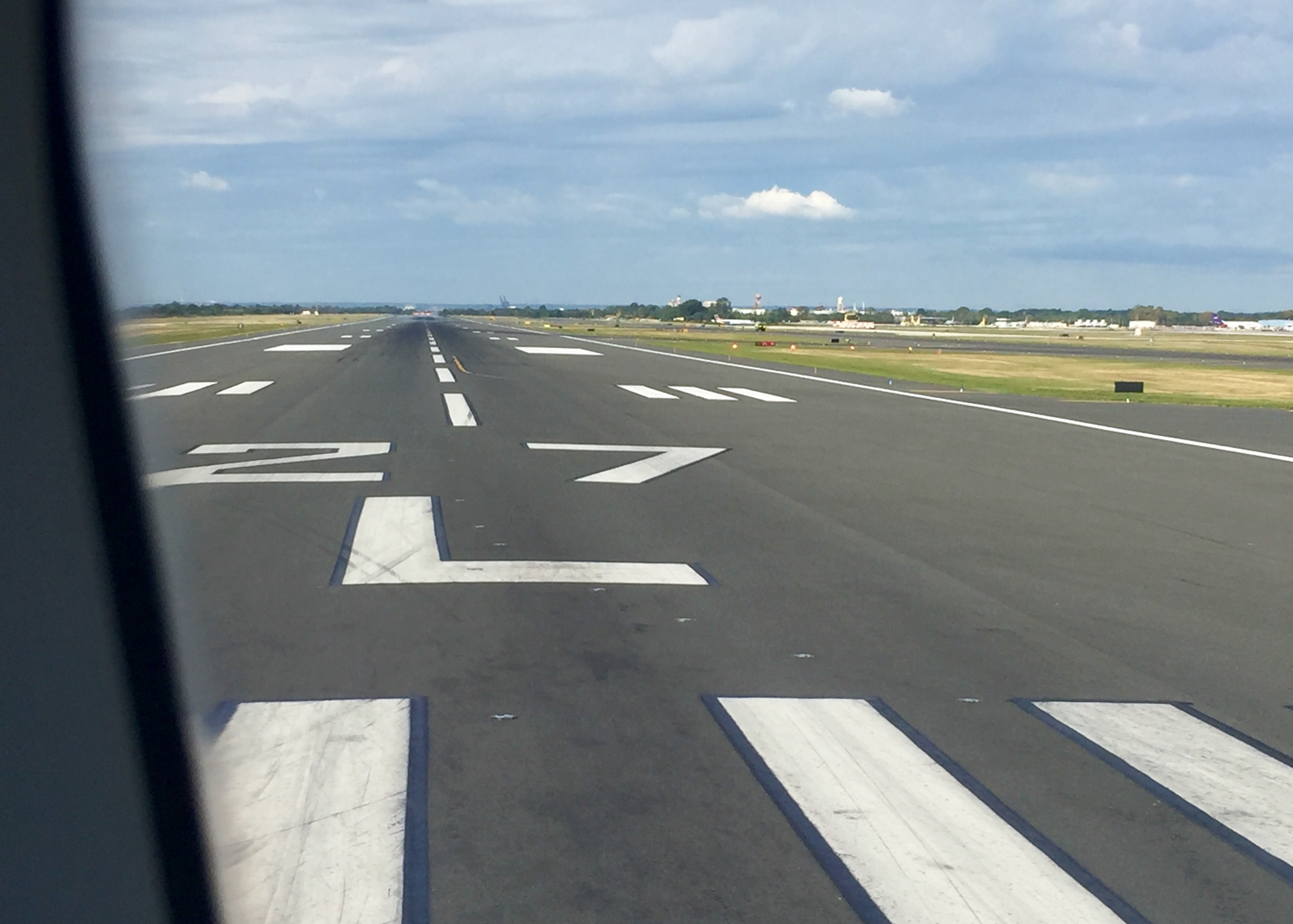
    Ready to go. 

    Share this:

    • Share on X (Opens in new window) X
    • Share on Facebook (Opens in new window) Facebook
    • Email a link to a friend (Opens in new window) Email
    • Print (Opens in new window) Print
  • Float Plane Flying in Puerto Rico

    2016-09-09

    |

    Videos

    A viewer request flight for Puerto Rico. We take the Aerosoft Beaver amphibian, departing San Juan Bay off the floats, then heading east to land at Jose Aponte de la Torre. Improvisation required to dodge clouds and weather along the way, and to manage some unexpected terrain inhibiting an otherwise straight forward left downwind approach at TJRV. I had a lot of fun on this one. Thanks for watching.

    Details:
    – Rex 4 direct with soft clouds
    – AS16 and Cloud Art
    – Orbx global, vectors, and OpenLC NA
    – Aerosoft Beaver

    Share this:

    • Share on X (Opens in new window) X
    • Share on Facebook (Opens in new window) Facebook
    • Email a link to a friend (Opens in new window) Email
    • Print (Opens in new window) Print
  • Latest RW Lesson: More Pattern Work

    2016-09-09

    |

    Real World Instruction

    Today in my real-world flight instruction we did pattern work. This was the second lesson in the past three days, and I have been very grateful to get some time in the airplane after logging a whopping two hours in August. I think I had six or seven lessons either scrub or need to be canceled on my part in the past month, and that was getting very frustrating for me. But that’s another post.

    Two days ago we got back in the saddle with hood work, slow flight under the hood, a power-off stall and recovery, emergency procedure (engine out) and recovery, steep turns, and turns around a point. All was with some good winds, some bumps, and the need to dodge a cloud or two. Two days ago I flew very well, and that was very heartening as I was concerned I was getting too rust. Today we did pattern work, flying out to Chester County airport to take advantage of its 5,000 foot runway and more easy touch-and-gos. Overall I flew pretty well, or as my CFI described it, “not too bad.” I cannot wait for the day where landings feel natural, although I feel like I’m getting much better and thinking pitch for speed, and being comfortable flying the airplane downhill with the nose pointed down right up to the landing itself. I think I’ve spent far too much time (nearly 2,000,000 miles) in airliners sitting on a three-degree glide slope. But we’re getting there.

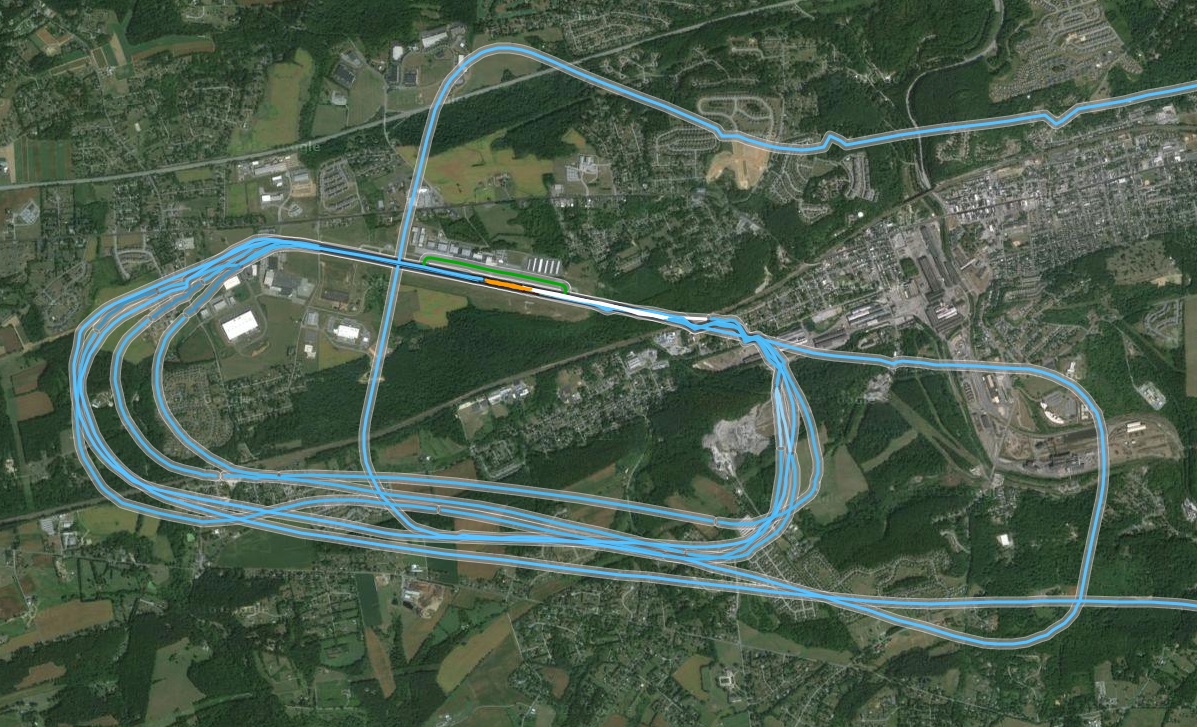
    Here’s todays pattern work via my phone and the CloudAhoy service:
    CloudAhoy 2

    Chester has a local noise abatement procedure to turn to 260 degrees after takeoff, which is why you see the oddly-shaped crosswind leg. And that one long downwind was when we extended to get behind a Baron that was making a straight-in final approach. That was a good learning experience, as I in essence did the full descent procedure (which would normally occur downwind/base/final) just on final approach. Wins were a bit across from the WNW, so we did a pretty good job of flying a square pattern given that. The main critique from my CFI was to anticipate my turns better.

    I flew this same lesson in the sim yesterday as preparation for today, using CloudAhoy connected to Prepar3d. It’s interesting to compare those patterns with the real-world ones from today:
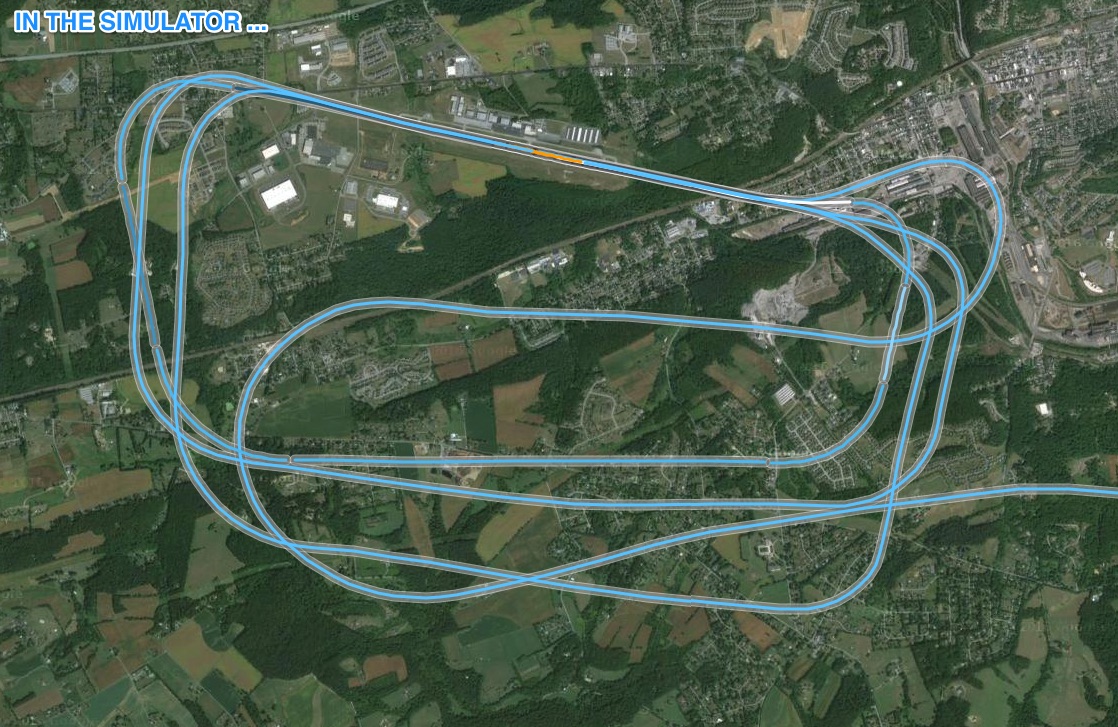
    CloudAhoy 3

    In the sim I’m clearly flying far too wide of a pattern, and too long of a pattern. It’s hard to judge when you’re 45 degrees ahead of the field in the sim, but I need to turn sooner if I’m going to simulate strong pattern work.

    After the pattern work it was back to the home field for landing, which was fine. I ballooned just a bit over the runway, but I’ll correct that with smaller movements on the elevator. Here’s the whole flight, and you can click this image to enlarge it:
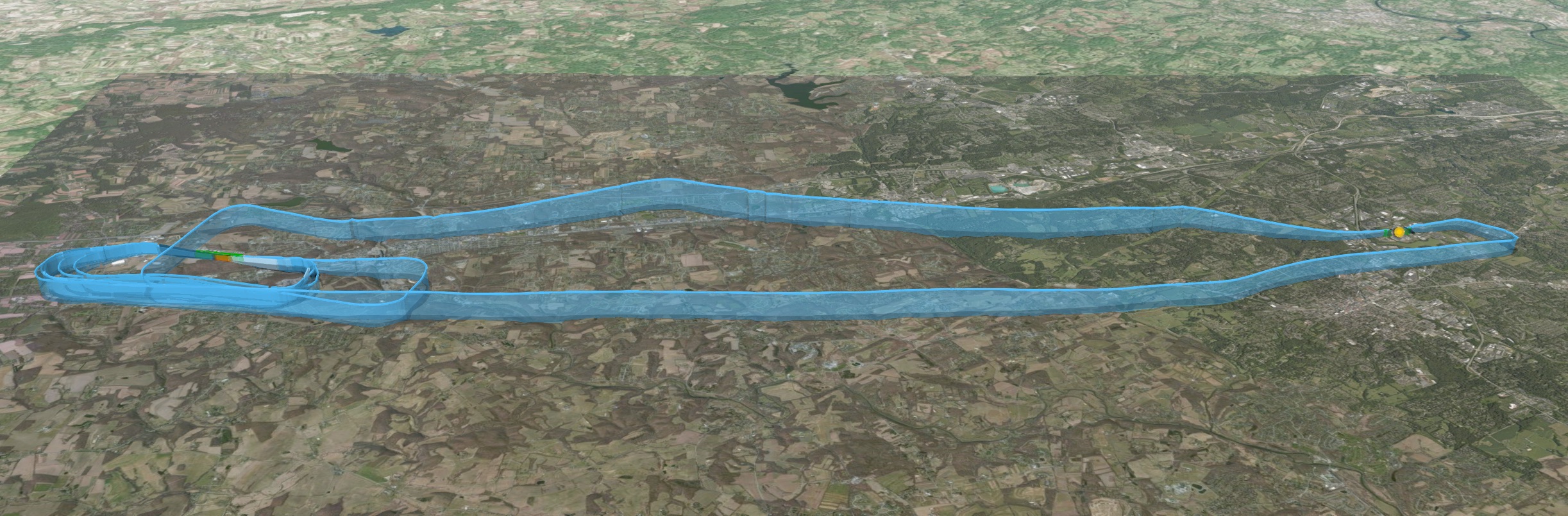
    CloudAhoy


    Share this:

    • Share on X (Opens in new window) X
    • Share on Facebook (Opens in new window) Facebook
    • Email a link to a friend (Opens in new window) Email
    • Print (Opens in new window) Print
Previous Page
1 … 42 43 44 45 46 … 59
Next Page

On The Glideslope

  • Instagram
  • Facebook
  • X

Loading Comments...

You must be logged in to post a comment.