
This is the same price for which I got my system over the holidays. Here’s the link.
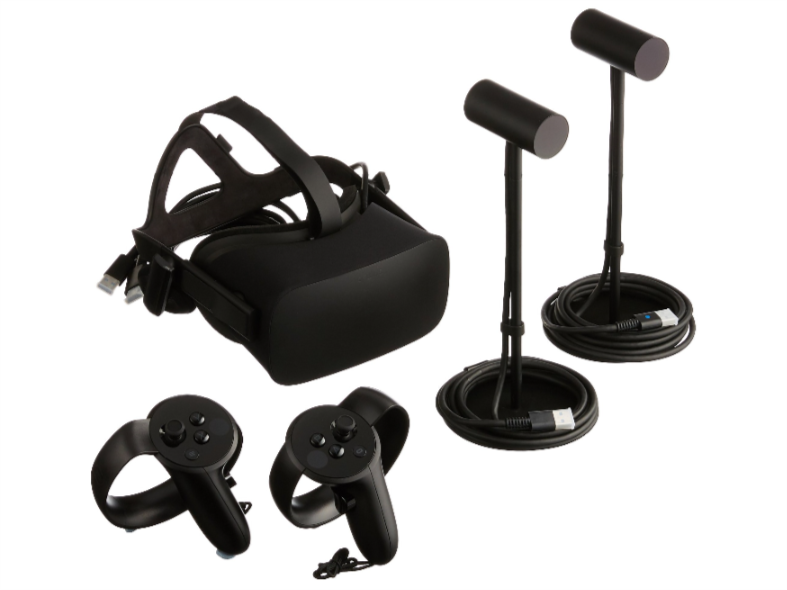
This is the same price for which I got my system over the holidays. Here’s the link.
The good folks at Rising Dawn Studios were kind enough to send me a promotional copy of their Half Moon Bay (KHAF) scenery for X-Plane 11. I was able to spend some time flying there today, first in a live-stream GoPro physical cockpit flight to Sacramento over lunch, and then in streamed VR flight (a video of which I post below) after work where I really tried to show the details of this very cool scenery. The scenery is available here at the .ORG store and here at FS Pilot Shop for $19.90 US.
It’s a pretty remarkable little field with a ton of detail. The designers have modeled all the on-airport buildings
, including the cell towers and the on-strip cafe (which, cleverly, has open shutters and an “open” sign out during the daytime and closed shutters and a “closed” sign out during the night). They’ve also modeled landmarks from the surrounding area, including the nearby hotel, harbor, and radar installation. Possibly the neatest feature is your own “home” hangar which you can customize with different paint textures and different art on the walls (you can even import your own). Even the user manual is clever, designed as a throw-back aviation magazine. It’s smart and well-done.
This field is a nice piece of work, and visually quite impressive (the tarmac textures, in particular, are great in HDR and I wish all X-Plane ramp textures looked like this). See the video below for the tour, including a few laps of the pattern and a “walking tour” via VR teleportation. If you want to make a small GA strip your X-Plane home base (especially in PilotEdge) this is an excellent choice and, in my view, worth the $19.90 . I found it reminiscent of ORBX GA strips, and the more of this we have via professional developers for X-Plane, the better. Looking at Rising Dawn’s Facebook page it appears they’re working on more fields, and I can’t wait to see the coming lineup.
I noted in my prior post that my VR was running extremely well as a result of some setting changes I’d made based on a YouTube video I’d found. I promised to post a link to that video, and it’s at the bottom of this post. It’s worth watching the entire thing, although the last 10 minutes or so you can probably scan through as it, for the most part, just makes and extended case for the use of the 3jFPS plugin. Here’s the list:
These setting are working extremely well for me, with solid 45FPS, very smooth performance, and few to no “grey flashes” or frozen views. I do think the changes to the power management settings throughout made a difference , for what that’s worth. It’s really a remarkably good experience, although your mileage may vary.
Inspired by this post at the .org, I was able to use LonelyScreen (https://www.lonelyscreen.com) and Oculus Dash to project and manipulate ForeFlight in real-time in the X-Plane 11 VR cockpit. I would assume you could do the same with any iOS-based electronic flight pad app. Very cool and very helpful!
https://youtu.be/0JLZ9lKdbFI
Yesterday I used the VR system to practice a real-world cross country flight that I had planned for today: Albert Whitted to Crystal River to Ocala and back. I streamed the dry run, and if you didn’t see it live the entire 2:26 minute flight is online at YouTube (video below).
Today I arrived at KSPG around 10:00 AM already noticing the unfavorable METARS along the route: fog and a low overcast ceiling that was supposed to persist until noon. Walking into the briefing room I said to my CFI, “If we go north we’re going to get stuck on top.” “Yep,” she replied, “so let’s go south.” I’d already made a cross-country down to Punta Gorda, and wasn’t really too excited about retracing the trip. So she suggested a longer flight (so I can log a longer solo cross country when the time comes) , down to Ft. Meyers (Page airport, KFMY), up to Arcadia (X06), and then back to St. Pete (KSPG) crossing Tampa Bay from the East. It’s was a lot of fun and we had truly stunning weather along the way.
If you want to simulate it yourself, here’s a link to the route on SkyVector. Climb to 2,000 ft by St. Pete Beach, then climb and cross the Sarasota Charlie and KVNC at 4,500. Once clear of KVNC, descend to 3,500. Once you’ve done the touch-and-go at Page fly the route back at 2,500.
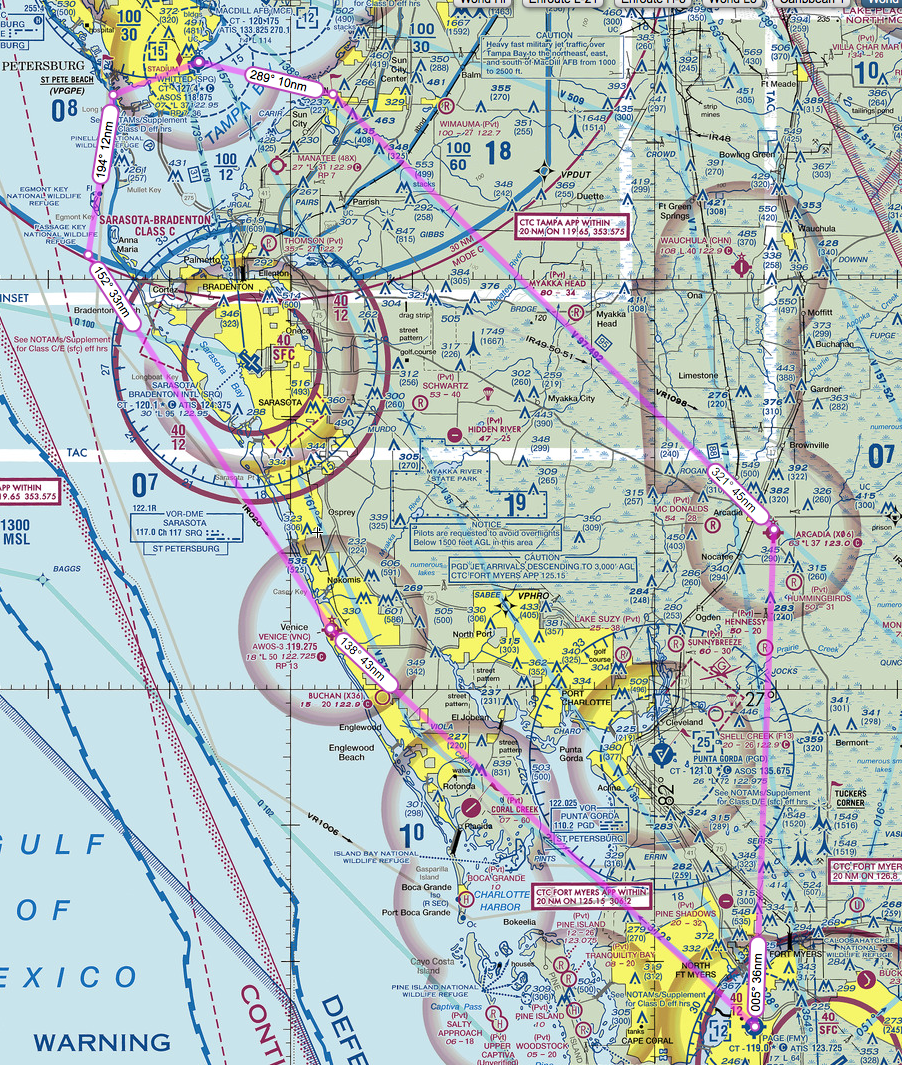
And again, here’s the vid of the (incorrect) dress rehearsal.
I upgraded the sim to VR3 last night and found, like several others, that I seemed to get generally better performance. I can run in HDR now with no significant hit compared to non-HDR, and it does seem slightly smoother.
Today, though, I watched the video below, made all of the changes suggested therein, and then had a truly remarkable 2:38 VR flight (yes, two hours, thirty-eight minutes). The sim was buttery smooth nearly the whole time, and this was WITH me streaming it and having the YouTube chat window in the cockpit via Oculus Dash. The flight started at KSPG Albert Whitted, which usually hits my frames pretty hard, but I was running at 45fps throughout. Across the flight I had no “grey flash” moments, judders, or image freezes, save one (when weather re-loaded). Toward the end of the flight I could tell the sim was probably running at 22.5fps for a time, but given that I’d been running it (and chewing through VRAM) for nearly three hours I wasn’t surprised. And after a bit, it improved. Truly a great flight, and I highly suggest taking the 40 minutes to watch his vid.
And for those who want to see the flight
, here’s the final 2:00 (it seems YouTube only keeps two-hours worth of streaming video). The flight was a dress-rehearsal for the cross-country I’m set to fly tomorrow real-world. One of the fun things in this flight: about six miles out from my first landing a YouTube watcher suggested via the chat that the airport was closed via NOTAM and that I had to divert. I did, and it was a great example of what to expect from a real-world examiner.
It sure was nice to spend some time together today.
This is off-topic from our normal discussions
, but it must be said:
Yesterday I flew my first scheduled live stream on YouTube, a PilotEdge flight from Grand Junction to Aspen. This is actually a continuation of my point-to-point flights, but I’ve switched to the JustFlight Turbo Arrow as the Saratoga isn’t a 3D cockpit suitable to VR (that Arrow is fantastic by the way – a really great X-Plane GA bird). The stream worked relatively well, although I’m still suffering from some upload speed issues. The flight goes relatively well. A weather update gives us some sudden IMC conditions, but we quickly get below the cloud deck and change our planned flight path to stay in the valleys. I also blow the approach into Aspen but the controller is good enough to get me back into the pattern. And last but not least , I crunch the landing hard enough to set off the ELT transmitter – I was using the Rift controllers and thought I had my hand on the virtual throttle in the flare but did not. It’s pretty funny to watch. Also, thinking about it now, I kept having to add rudder on the approach thinking it was a cross wind. It wasn’t. I’d used the Arrow’s rudder trim in flight and never trimmed it back. This is why we practice!
I could not stand the blue circle that SteamVR would put around you in the X-Plane VR cockpit. Thanks to Dan on YouTube I found this post by DazzyB on how to remove it. 30 seconds and it was banished forever. Here’s the method:
1) Quit SteamVR if it is already running (you don’t need to quit Steam itself).
2) Launch Explorer and then locate your main Steam folder. Normally this will be located in C:\Program Files (x86) unless you installed Steam with the custom option.
3) Go into the ‘config’ folder and then open up the file called ‘steamvr.vrsettings’ in Notepad.
4) Copy and paste the following lines of code directly below the line that starts with the { character (located at the very top of the file)…
"collisionBounds" : {
"CollisionBoundsColorGammaA" : 0,
"CollisionBoundsColorGammaR" : 255
} ,
5) Save and close the file.
You must be logged in to post a comment.