On The Glideslope

  • How To
    • How I Configure For VR In X-Plane
    • How To Have Dual Controls In X-Plane
    • How To Configure X-Plane 11 For Multiple Screens
    • How To Create Custom Cameras In P3D
    • How To Get Started With X-Plane 11
  • Resources
    • Schematics
    • Center Console Plans
    • Basement Sim Video Tour
    • Screen Configurations
    • A2A LVAR List PDFs
    • How To Talk ATC
    • Cessna 172 Cabin Dimensions
    • USB u0026 Saitek
  • Reviews
  • What’s In The Sim
  • About OTG
    • About OTG
    • The Construction Journey
  • My Current X-Plane VR Settings

    2018-06-16

    |

    Uncategorized

    UPDATED 11/17/18

    I’m often asked for this, so here is the latest. I will update this post over time, and as of this posting these are my VR settings for X-Plane 11.30b4 and the Oculus Rift.

    ***

    My settings are primarily based on a YouTube video I’d found, which I have posted at the bottom of this post. It’s worth watching the entire thing, although the last 10 minutes or so you can probably scan through as it, for the most part, just makes and extended case for the use of the 3jFPS plugin. 3jFPS is excellent, but I now use Twick VR. Here’s the list:

    • Using the automatic overclock wizard in my BIOS I have overclocked my CPU. A 4.0 chip, it’s running at 4.6 after the wizard, which I have manually upped to 4.7. DON’T OVERCLOCK YOUR CPU UNLESS YOU ARE COMFORTABLE WITH WHAT YOU ARE DOING AS YOU CAN PERMANENTLY DAMAGE YOUR PC.
    • Based on the video below, in my BIOS I also:
      • Turned Hyperthreading on
      • Disabled power management
      • Disabled CPU C states
      • Disabled Intel Speed Step
      • AGAIN, DON’T MESS WITH YOUR BIOS UNLESS YOU ARE COMFORTABLE WITH WHAT YOU ARE DOING AS YOU CAN PERMANENTLY DAMAGE YOUR PC.
    • With my old 980ti GPU card I used the NVIDA Inspector I overclocked by GPU by 80 on the clock speed and 200 on the memory speed. DON’T OVERCLOCK YOUR GPU UNLESS YOU ARE COMFORTABLE WITH WHAT YOU ARE DOING AS YOU CAN PERMANENTLY DAMAGE YOUR PC. But my new 1080ti is factory overclocked, so I no longer bother with overclocking it.
    • Using Oculus Tray Tool I:
      • Set the performance to Maximum Performance Plan
      • Disabled USB Select Suspend
      • Set SuperSampling to 0
      • Left ASW alone — which is DIFFERENT from what he says to do in the video, because I prefer Oculus Debug Tool for setting the frame rate, as I can decide between fixing it at 45 FPS with AWS or without.
    • Each time I load X-Plane I set Super Sampling to 1.2-1.5, depending on the performance hit I get in the scenery I’m flying in. Typically I now use 1.2 as I can use better anti-aliasing with my 1080ti, and I fly WITHOUT fixed 45 FPS or asynchronous spacewarp (ASW) as I’m getting very good frames in 11.3. With an older card, like my 980ti, I set SuperSampling between 1.2 and 1.5 and ASW to fixed 45 FPS with space warp off. This works best for me, and if you have performance problems you might turn down the Super Sampling to a lower number (maybe start with 1.3 and work your way up – at some point the increase in clarity is not worth the decrease in performance).
    • As a result of the two points above , please note that (1) the Tray Tool changes are a one-time thing. I do NOT load Tray Tool each time I load X-Plane. I DO, however, load the Debug Tool each time I load X-Plane, and I am good with that.
    • Using Project Lasso, I:
      • Enabled Performance Mode in the overall settings
      • With X-Plane and X-Plane VR running, in Lasso I:
        • Set XP’s priority to High
        • Set its CPU affinity to use virtual cores 2-7 (all but the first two and I have eight virtual cores with hyperthreading on)
        • Note: If you are not using hyper threading, run XP on all but your first physical core.
        • I have not had great results moving other items, like the Oculus programs, to the first physical core and away from X-Plane. Rather I give X-Plane the last three physical cores and keep it of the first, and let Windows allocate the rest of what’s running across the cores and threads as it sees fit given my performance and power management settings.
    • In Windows Power Management (which is in the Windows Control Panel settings), I set the power management profiles to Bitsum Highest Performance (which is a profile created by Lasso). If you don’t have Lasso, pick Highest Performance.
    • In NVIDIA Control Panel, I:
      • Set the overall 3D profile Energy setting to Max Performance
    • IF YOU USE 3jFPS:
      • With X-Plane running, in the 3jFPS plugin Advanced Settings I:
        • Ran the wizard for a min FSP of 45 and max FPS to 46, and took the best FPS options in every other choice it gave me
        • Then I went back through the advanced settings and:
          • Reduced sliders in the LOD settings to the bottom of the green scale
          • Reduced min and max sliders in the visibility settings to the bottom of the green scale
    • IF YOU USE TWICK VR: I have played with the shadow, weather, etc. settings to please my eye. I then manually set the % of objects slider to get the best balance of performance and scenery objects. For me that’s between 78% and 88% (and 88% is my default setting)
    • WITH MY OLDER 980ti CARD in X-Plane graphics settings I:
      • Set it to windowed mode as it seems to perform better minimized (meaning once I have the Rift on I minimize the XP window)
      • Graphics to HDR (position 4)
      • Textures to max (position 4)
      • AA to FXAA (position 2)
      • Objects to almost max (position 4) — while he runs at max objects, I found it hurt my frames too much in busy areas
      • Shadows on if I’m using the latest 3JFPS with it’s auto-shadow setting, otherwise shadows off, reflections off
    • WITH MY NEW 1080ti CARD in X-Plane graphics settings I:
      • Set it to windowed mode as it seems to perform better minimized (meaning once I have the Rift on I minimize the XP window)
      • Graphics to HDR (position 4)
      • Textures to max (position 4)
      • AA to 2xSS & FXAA (position 4)
      • Objects to max (position 5)
      • Shadows on, reflections off
    • Finally, I did anything else I could do to reduce the CPU load while playing X-Plane:
      • Turned off Windows auto updates
      • Turned off NVIDIA Geforce Experience
      • Set Oculus Server to run in administrator mode, which seems to keep it from loading the full Oculus window unless I specifically open it

    These setting are working really well for me, with usually solid 45FPS, smooth performance, and few to no “grey flashes” or frozen views. I do think the changes to the power management settings throughout made a difference, for what that’s worth. It’s really a remarkably good experience, although your mileage may vary.

    Share this:

    • Share on X (Opens in new window) X
    • Share on Facebook (Opens in new window) Facebook
    • Email a link to a friend (Opens in new window) Email
    • Print (Opens in new window) Print
  • Maneuvers Practice, And A Hop In The 747

    2018-06-16

    |

    Live Streams

    This is today’s live stream. The majority of the flight was me running through a real-world maneuvers practice flight in the Archer III using VR. I haven’t been able to fly for weeks in the real airplane

    Kup Priligy bez recepty w Warszawie

    , so I did this hop just to practice procedures. Then and the end I figured to try out the 747-800 in VR just for fun. That starts at 1:13 or so. I actually manage to land the thing! The ability to fly and interact with different aircraft in real-world proportion is one of the most amazing things about VR technology. If I only knew what all those buttons and dials actually do …

    Share this:

    • Share on X (Opens in new window) X
    • Share on Facebook (Opens in new window) Facebook
    • Email a link to a friend (Opens in new window) Email
    • Print (Opens in new window) Print
  • A Really Beautiful Home Cockpit

    2018-06-01

    |

    Other Great Home Cockpits

    One of the things I like about the forums here — at least when I have time to read them — is people posting pics of their home cockpits. There are so many cool designs and so much passion and enthusiasm behind them. It’s really great to see. One regular reader and viewer on my YouTube stream is “Taxi Into Position And Hold” (should I start calling him Tipah?). He’s built a C 712 panel that really is a work of art. Witness …

    Share this:

    • Share on X (Opens in new window) X
    • Share on Facebook (Opens in new window) Facebook
    • Email a link to a friend (Opens in new window) Email
    • Print (Opens in new window) Print
  • How To Flip Both X-Plane Cessna 172 Avionics Switches With Single A Physical Switch

    2018-06-01

    |

    How Tos

    A question that comes up here from time to time is how to have a single physical avionics switch, like that in the great Desktop Aviator switch panel, flip both avionics switches in the X-Plane Cessna 172 (which has two, one on each electronics bus). The answer is to assign the “cross-tie” command to the physical switch, not the avionics toggle command. Hope that helps.

    koupit-pilulky.com

    Share this:

    • Share on X (Opens in new window) X
    • Share on Facebook (Opens in new window) Facebook
    • Email a link to a friend (Opens in new window) Email
    • Print (Opens in new window) Print
  • My Brother Is Awesome

    2018-05-26

    |

    Uncategorized

    Check out the golf balls he had made for me. I can’t wait to start losing ’em.

    Share this:

    • Share on X (Opens in new window) X
    • Share on Facebook (Opens in new window) Facebook
    • Email a link to a friend (Opens in new window) Email
    • Print (Opens in new window) Print
  • DCS

    2018-05-20

    |

    Uncategorized

    I had a little fun in DCS World today. This game / sim is incredible in Virtual Reality.

    https://youtu.be/CijOc3qgJPA

    Koupit Cialis

    Share this:

    • Share on X (Opens in new window) X
    • Share on Facebook (Opens in new window) Facebook
    • Email a link to a friend (Opens in new window) Email
    • Print (Opens in new window) Print
  • Working With Datarefs

    2018-05-16

    |

    Uncategorized

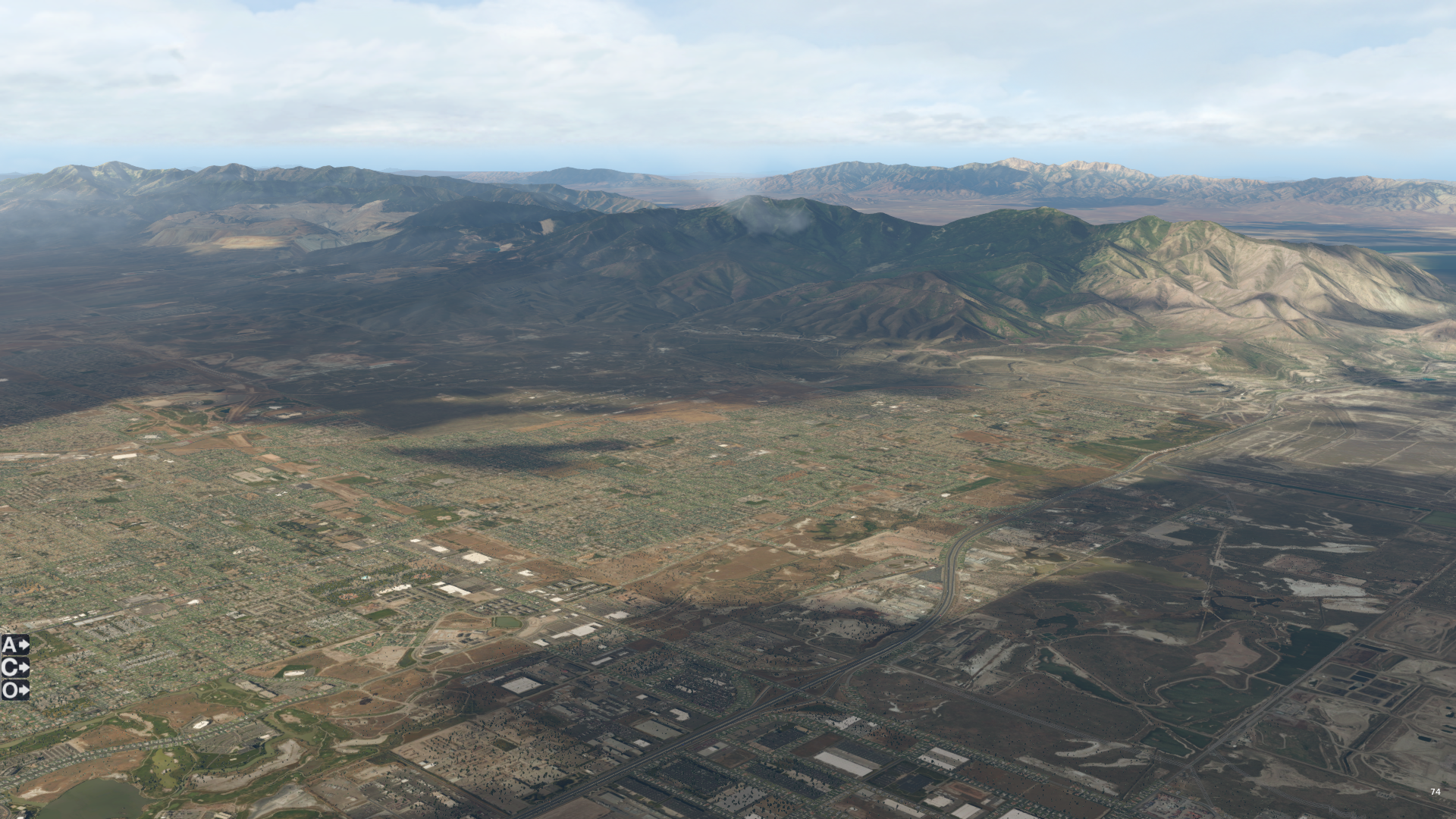
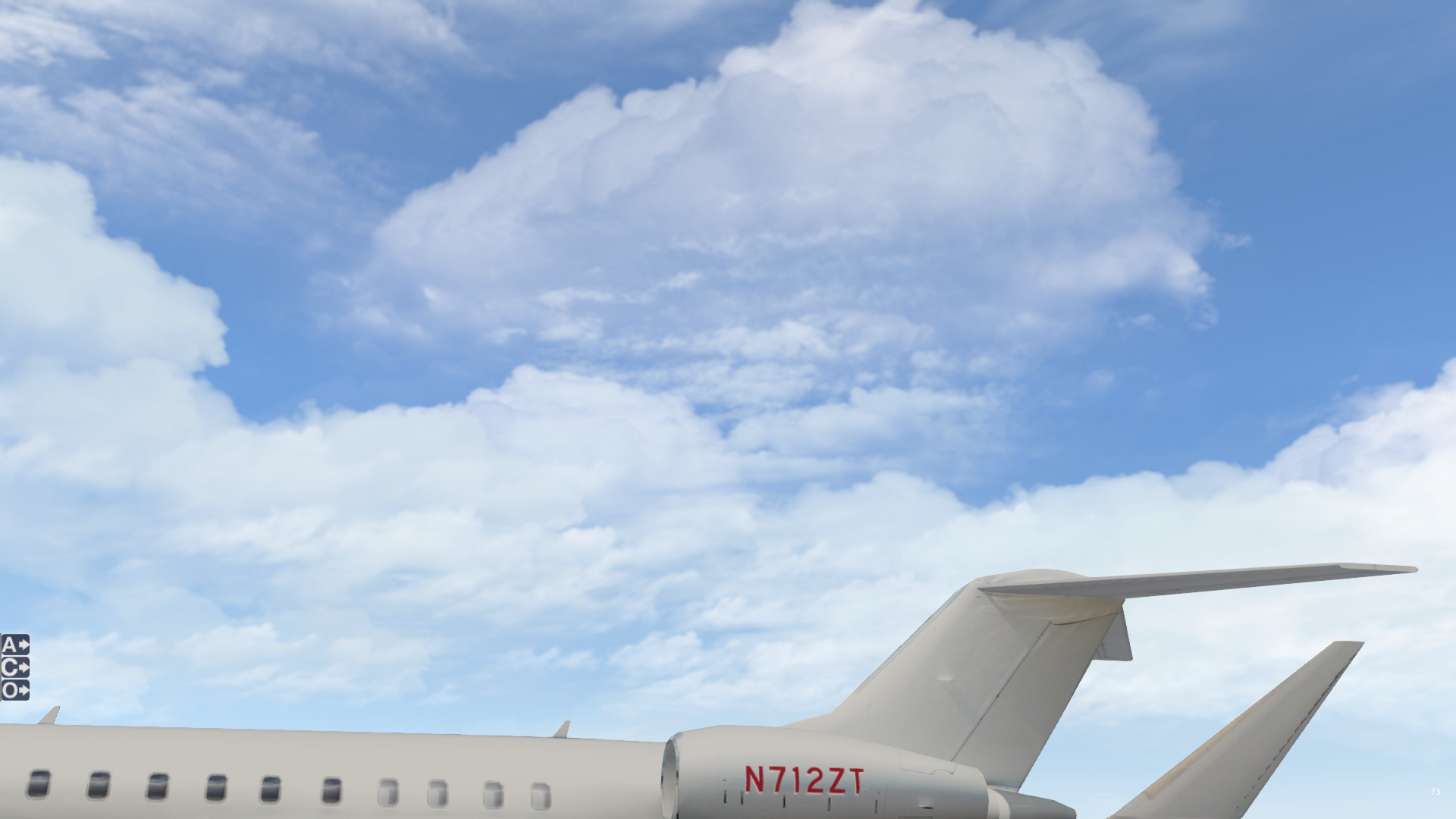
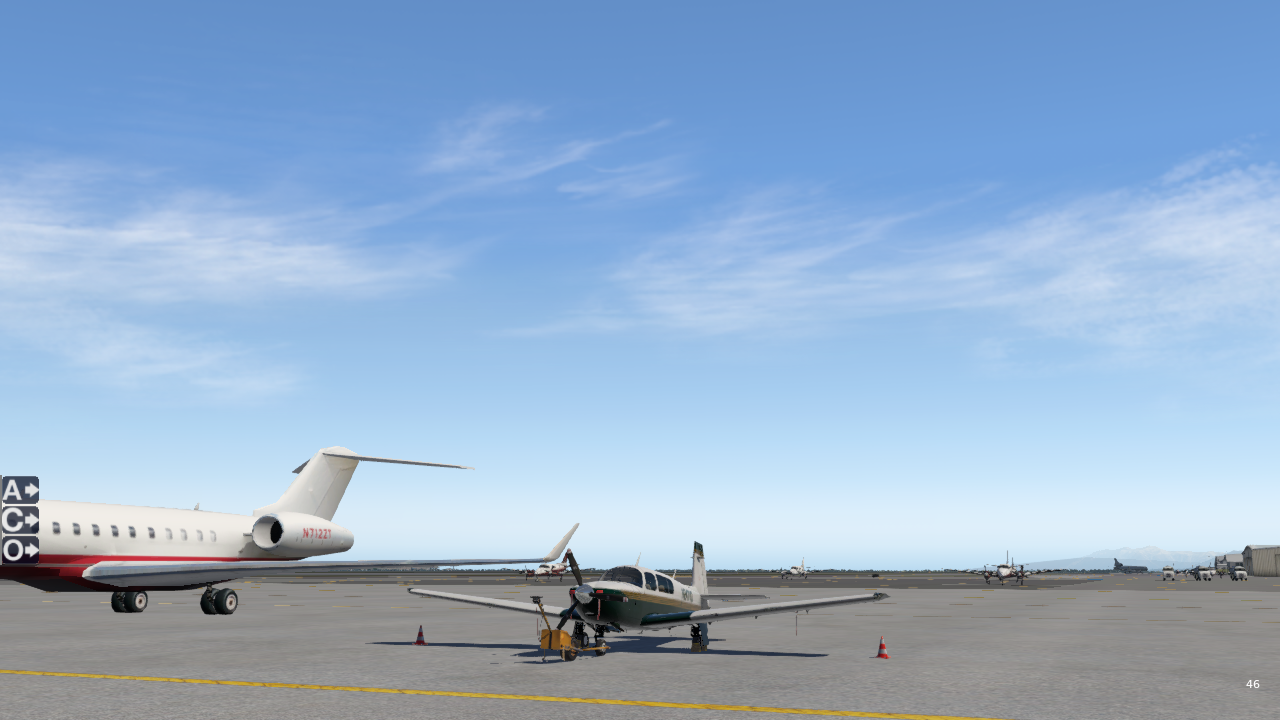
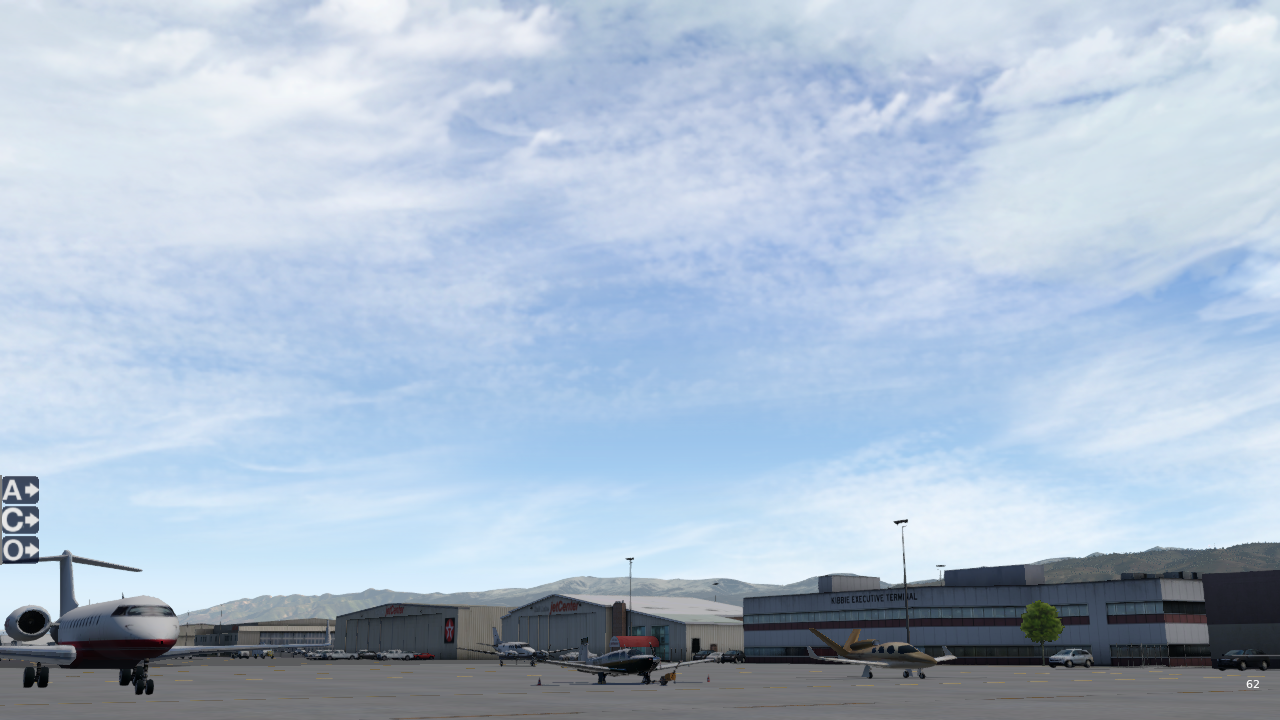
    I’ve been hoping to increase the quality of the sky colors and clouds in X-Plane 11. While I have used xEnviro for some time and have liked it very much, I don’t think it always looks great in VR (especially in how it handles haze). I had downloaded a number of free cloud and sky enhancements over the past few days, but none of them looked right (or even much like what I saw in the screen shots online). Today I realized that part of the problem was that I was running the wrong version of FlyWithLua — I need the “complete edition” if I (or other scripts I install) are going to modify art datarefs (data refs are the variables X-Plane uses to run its world). Things immediately got better once I had the correct version installed, but I also continued down the path of playing with different cloud and shadow datarefs in search of a mix that suits my eye.

    I’m getting close and have attached screen captures below of various cloud decks. These use the FSEnhancer sky colors (free) and set 2 or 3 (I can’t recall which) of the Unique Clouds Variety Pack (also free). I’ve modified quite a few datarefs in getting this look (and they load in via a little LUA script I’ve written), and in addition to the clouds looking good I am particularly happy with the look of the cloud shadows — something that I think the default X-Plane release handles quite poorly. Things look good in VR as well, with one exception: the cloud shadows rotate when you move your head. I’ll work on figuring that out next, and once I have it nailed I’ll post the LUA code here.

    M20R_Ovation_6

    M20R_Ovation_5

    M20R_Ovation_4

    M20R_Ovation_3

    M20R_Ovation_2

    M20R_Ovation_1

    Share this:

    • Share on X (Opens in new window) X
    • Share on Facebook (Opens in new window) Facebook
    • Email a link to a friend (Opens in new window) Email
    • Print (Opens in new window) Print
  • Thank You SimVim

    2018-05-15

    |

    Uncategorized

    A few posts back I reviewed the awesome GNS 530 unit from RealSimGear. It’s a great piece of gear

    antibiotici-acquista.com

    , one that I find extremely true to life (especially when running the RealityXP GNS 530), and one that I was very happy to not have to build myself. I also did not have to pay for it as it was a courtesy unit sent to me for review, but in candor I would pay for it if I did not have the good fortune to have one.

    Along the way the good folks at SimVim have sent me a note to make mention of the fact that the unit uses their Arduino board and firmwear, and a user of this GNS 530 also downloads their ArdSimX plugin for use with X-Plane. I just wanted to mention that here in the interest of proper credit being placed where it’s due. This is also all an excellent example of how the different parts of our simulation community work together to create amazing things for us to use in our hobby or real-world practice.

    Share this:

    • Share on X (Opens in new window) X
    • Share on Facebook (Opens in new window) Facebook
    • Email a link to a friend (Opens in new window) Email
    • Print (Opens in new window) Print
  • Mooney Ovation Point To Point

    2018-04-30

    |

    Uncategorized

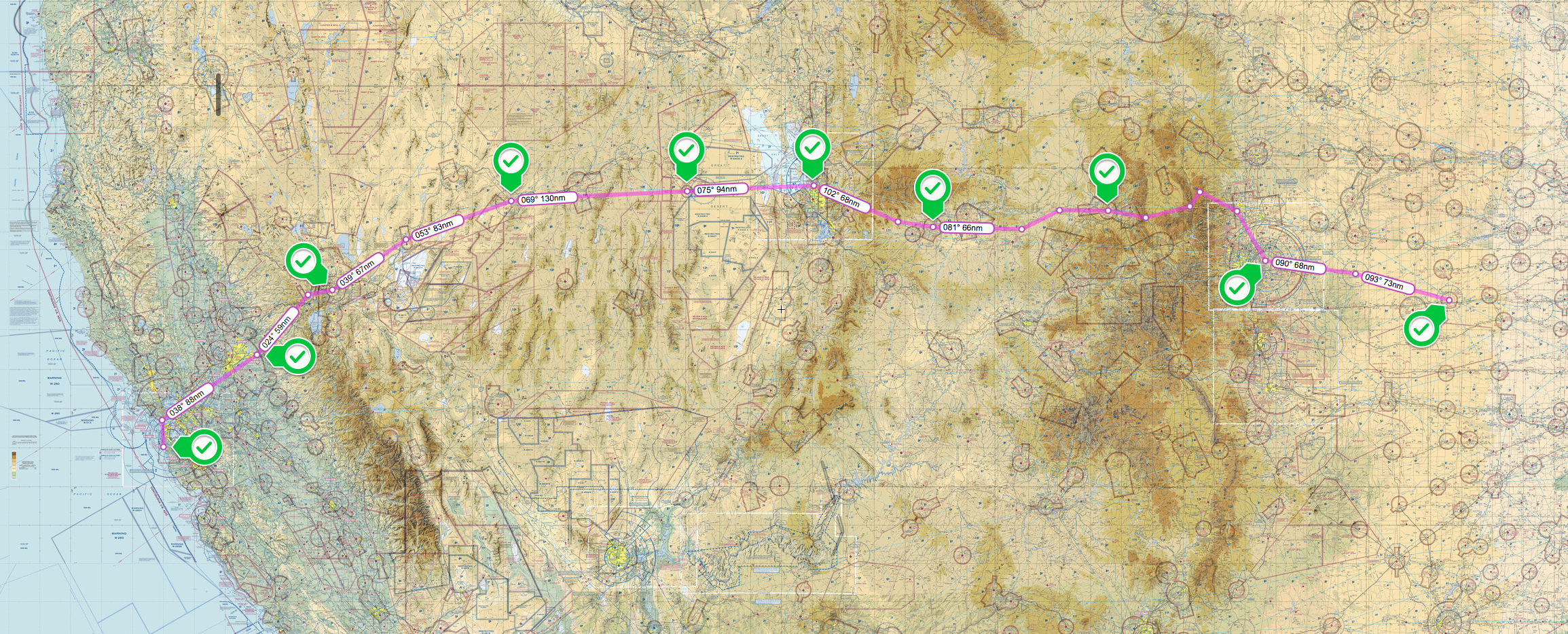
    A while back I was flying a Piper Saratoga from place to place in X-Plane. I gave that up some time ago, but recently have started a similar process in the Alabeo Mooney Ovation. Starting in Half Moon Bay the aircraft is now in Goodland, Kansas, and in each flight I have flown under real-world weather conditions. I was thinking of flying it all the way to the east coast of the US, and then perhaps on to Europe, but I really do prefer being in the Pilot Edge service area so I can practice my ATC skills. Goodland is near the far eastern edge of the PE map, so I’ll probably head south next.

    Here’s the current map. I’ve also been live streaming most of these flights on YouTube, and you can find them here. It’s been an interesting experience, especially with me trying to follow real-world procedures and decision making throughout. I also found an Ovation operating handbook online, so I’ve also been following its procedures for managing a complex aircraft. That, too, has been very worthwhile (and thanks to the YouTube viewers who have helped me learn the proper way to lean the mixture for takeoff during the run-up).

    SkyVector__Flight_Planning___Aeronautical_Charts

    Share this:

    • Share on X (Opens in new window) X
    • Share on Facebook (Opens in new window) Facebook
    • Email a link to a friend (Opens in new window) Email
    • Print (Opens in new window) Print
  • It’s Been A While …

    2018-04-23

    |

    Live Streams, Point To Point, Videos

    … since my last post, so here is a brief update.

    All is well. Just busy. Real-world instruction is coming to its final phases. I’m scheduled for my second solo cross-country this Thursday, and have two night flights set for next week. If the weather cooperates this will fulfill all remaining requirements for my check ride. So let’s hope for clear skies and reasonable winds. If things go that way, I’ll probably do two check ride prep flights and if I’m lucky schedule my check ride before the end of May. Keep your fingers crossed!

    Sim time has been spent trying to fly on the PilotEdge network and follow real-world procedures, trying to keep things as realistic as possible with the check ride on the horizon. I’ve also been preferring VR to the physical cockpit as it’s just a more realistic experience for me. In doing so I’ve been flying the Mooney Ovation from point to point using real-world weather, starting in Half Moon Bay and making my way to Wendover, NV so far. Here’s a stream of the latest flight. I think I’ll go on to Salt Lake City from there and you are always welcome to join in.

    https://www.youtube.com/watch?v=FcMQTMCGihs

    Pharmacie Montignac Dordogne Pharmacie de la Vézère

    Share this:

    • Share on X (Opens in new window) X
    • Share on Facebook (Opens in new window) Facebook
    • Email a link to a friend (Opens in new window) Email
    • Print (Opens in new window) Print
Previous Page
1 … 8 9 10 11 12 … 59
Next Page

On The Glideslope

  • Instagram
  • Facebook
  • X

Loading Comments...

You must be logged in to post a comment.